


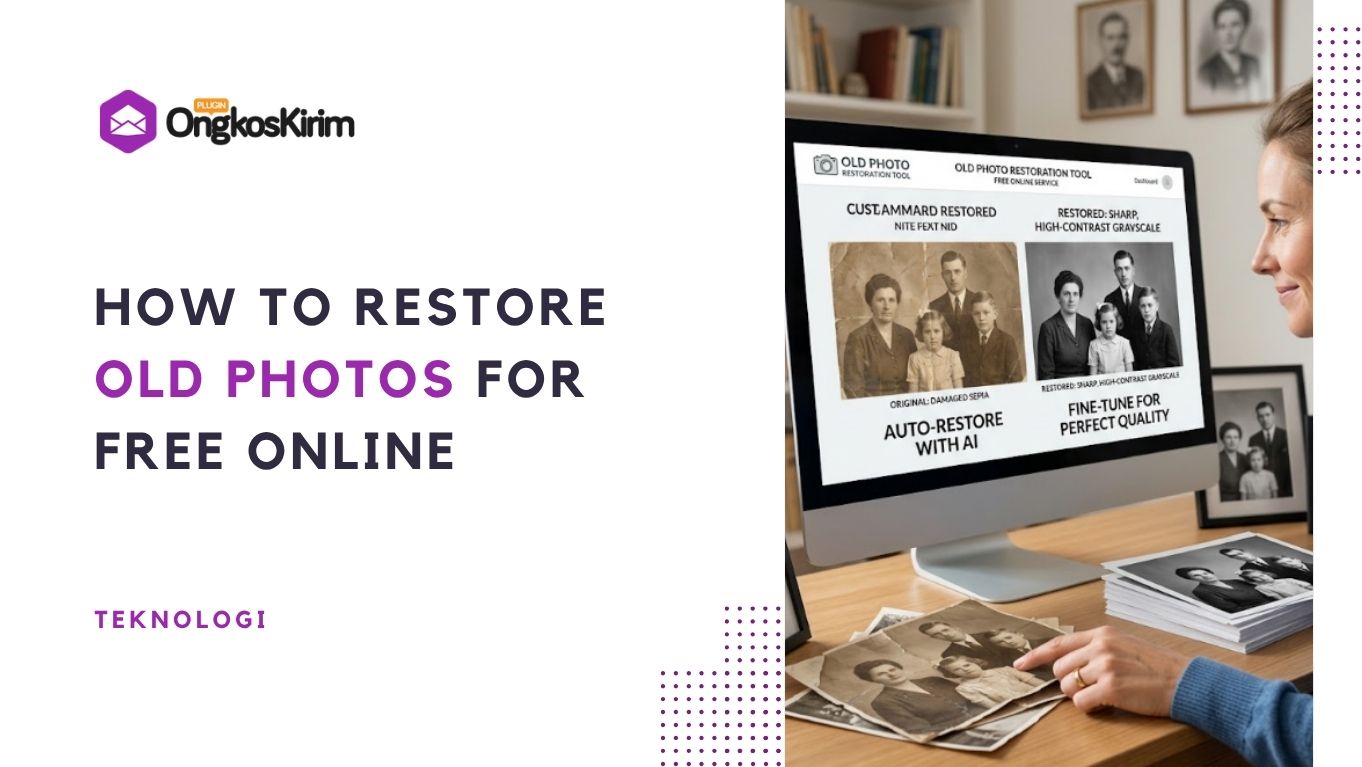
Old family photographs hold a lot of sentimental value. You might have a box of them in your attic or basement right now. Over time, these physical copies start to fade or get blurry. You might think these memories are lost forever because the details are hard to see. Learning how to restore old photos is much easier than it used to be. You do not need to be a professional editor to fix these issues.
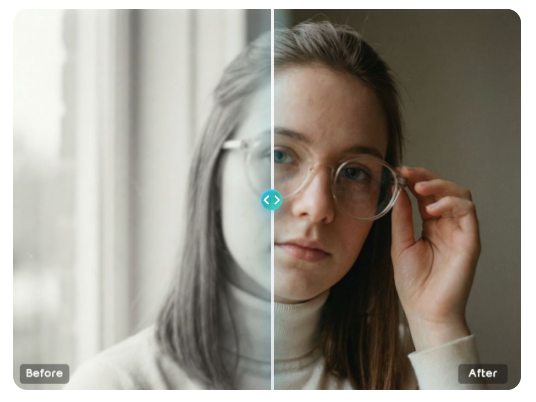
Modern technology allows you to fix these images in just a few clicks. You can use a Free Unblur Image Online tool to bring back the sharpness and clarity. This process uses artificial intelligence to fill in the gaps that time has created. It looks at the blurry parts and predicts what the original details should look like. This makes the restoration process fast and accessible for everyone.
- Step 1: Create a Digital Copy of Your Photo
- Step 2: Upload Your Image to the Restoration Tool
- Step 3: Apply the Unblur and Restoration Filters
- Step 4: Fine-Tune the Results
- Step 5: Save and Download Your Restored Photo
- Comparison of Digitizing Methods
- Tips and Best Practices for Better Results
- Common Mistakes to Avoid
- Summary of the Restoration Process
Step 1: Create a Digital Copy of Your Photo
The first step in the restoration process is getting your physical photo into a digital format. You cannot fix a piece of paper with a computer until it is a file. You have two main ways to do this. You can use a flatbed scanner or your smartphone camera.
If you use a scanner, make sure the glass is clean. Dust on the scanner will show up as white spots on your digital image. Set the scanner to a high resolution. You should aim for at least 300 DPI, but 600 DPI is better if you want to print the photo later. Higher resolution means the AI tool has more data to work with when it starts the unblurring process.
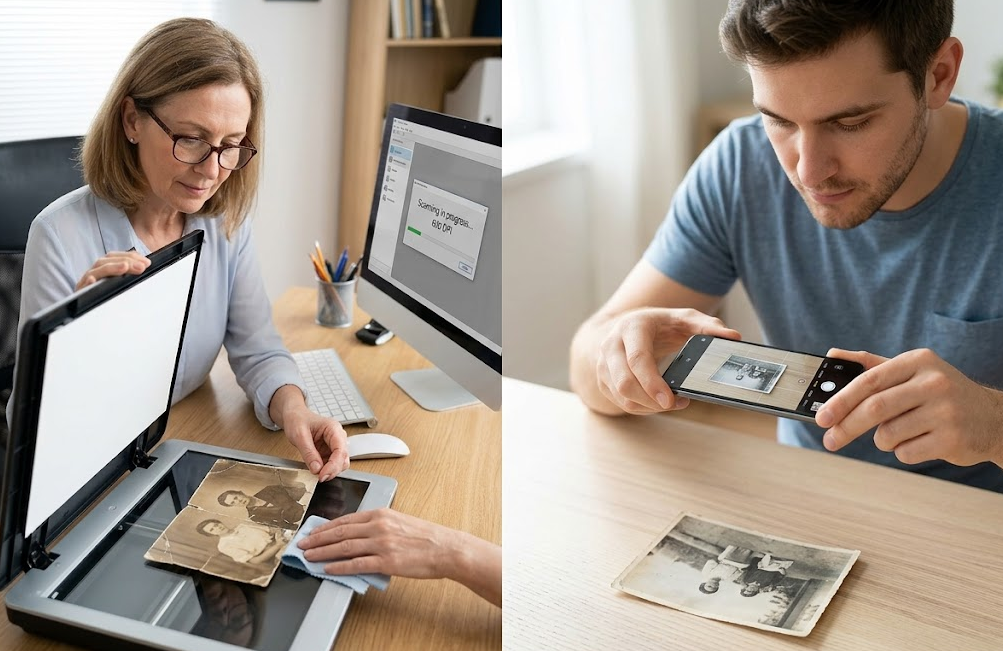
If you use a phone, find a spot with natural, even light. Avoid using the flash because it creates a bright spot in the middle of the photo. Hold your phone steady and keep it parallel to the picture. This prevents the edges from looking skewed. There are many mobile apps designed specifically for scanning documents that can help you get a flat, clear shot.
Step 2: Upload Your Image to the Restoration Tool
Once you have a digital file, you need to bring it into the online tool. Most tools use a simple interface where you can drag and drop your file. You should use a common file format like JPG or PNG. These formats are easy for the software to read and process.
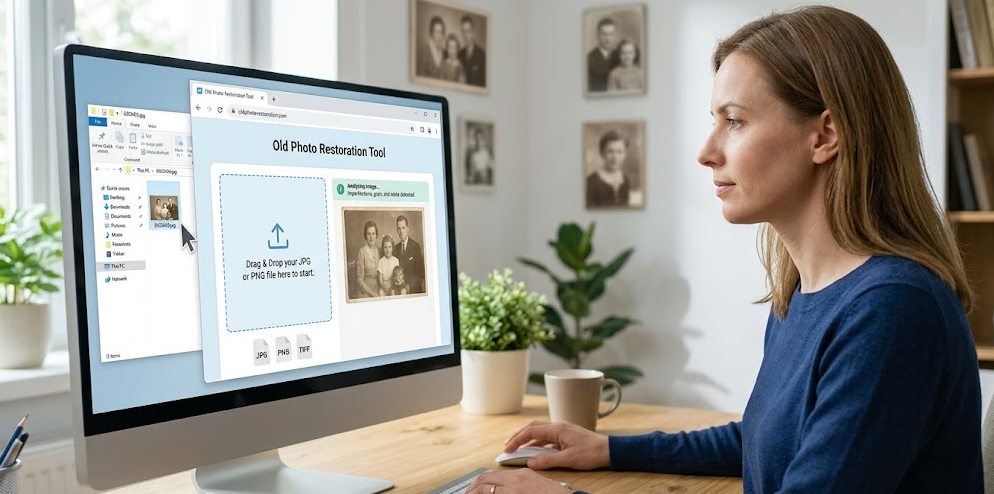
After you upload the file, the tool will analyze the image. It looks for patterns, edges, and textures. If the photo is old, it might have grain or noise. The software identifies these imperfections. You will usually see a preview of your image on the screen. This is the starting point for your restoration journey.
Step 3: Apply the Unblur and Restoration Filters
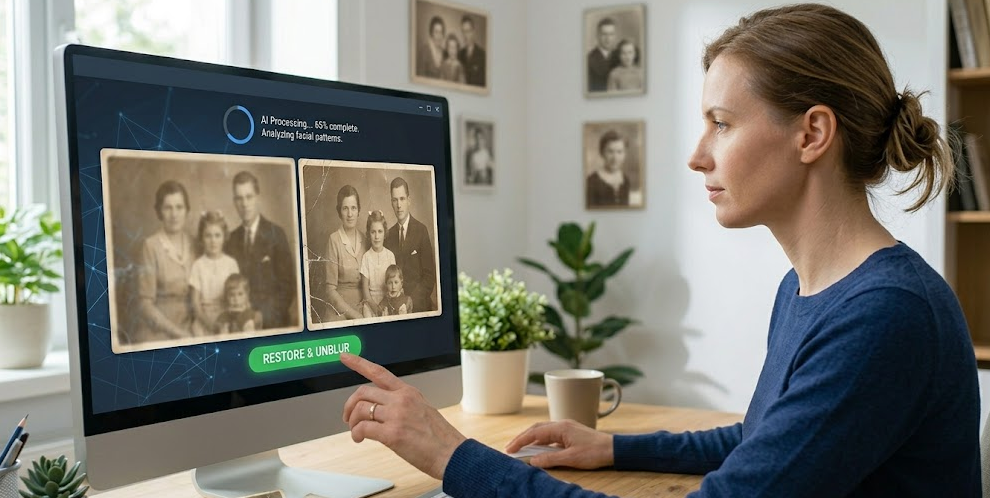
This is where the magic happens. You will look for a button that says unblur or restore. When you click it, the AI starts to work. It calculates how to sharpen the edges and remove the haze. If the photo has scratches or cracks, the restoration feature will try to blend those areas with the surrounding pixels.
You might see a progress bar while the computer thinks. It is comparing your blurry photo to millions of clear images it has studied before. It uses that knowledge to reconstruct faces, clothing, and backgrounds. The goal is to make the photo look like it was taken with a modern camera while keeping the original feel of the moment.
Step 4: Fine-Tune the Results

Most tools give you sliders to adjust the intensity of the effect. You might want to increase the sharpness a little more or pull it back if it looks too fake. You should also look at the brightness and contrast. Old photos often lose their deep blacks and bright whites over time.
Baca Juga
Adjusting the contrast can make the image pop. It separates the subject from the background. You can also play with the color balance. If a black-and-white photo has turned yellow or brown, you can remove that tint to make it a clean grayscale image. If it is a color photo that has faded, you can boost the saturation to bring the reds and blues back to life.
Step 5: Save and Download Your Restored Photo
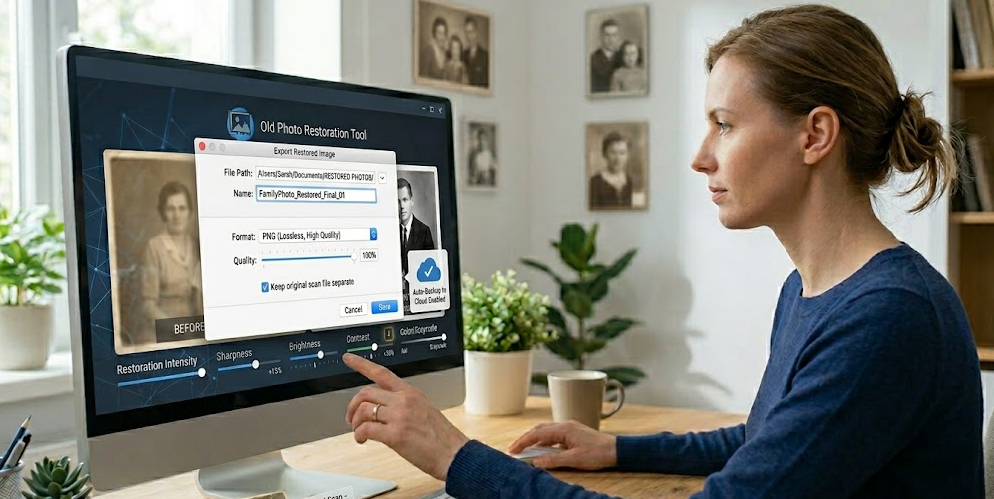
When you are happy with the way the photo looks, you need to save it. You should always choose the highest quality setting available. If the tool asks for a file format, PNG is a great choice because it does not lose quality when you save it. JPG is also fine if you need a smaller file size for sharing on social media.
It is a good idea to give the file a new name. Do not overwrite your original digital scan. You might want to try different settings later, so keeping the original scan is important. Store your restored photos in a dedicated folder on your computer or in the cloud. This ensures they are safe from physical damage like fire or water.
Comparison of Digitizing Methods
| Method | Speed | Quality | Best For |
| Flatbed Scanner | Slow | Very High | Archiving family history |
| Phone Camera | Fast | Medium | Quick sharing on social media |
| Scanning App | Medium | High | Getting flat images without a scanner |
| Professional Service | Very Slow | Highest | Extremely damaged or fragile photos |
Tips and Best Practices for Better Results
To get the best results, you need to start with the best possible scan. A common mistake is trying to fix a tiny, low-resolution thumbnail. The AI needs pixels to work with. If the source is too small, the result will look like a painting rather than a photograph. Always go for the largest file size you can create during the scanning phase.
You should also pay attention to the physical condition of the photo before scanning. If there is loose dirt or hair on the photo, gently brush it off with a soft, dry cloth. Do not use water or cleaning chemicals, as these can ruin the old paper and ink. A clean photo results in a cleaner digital file, which means less work for the unblur tool.
Another great tip is to work in stages. Sometimes applying a light unblur twice looks better than applying a heavy unblur once. If the tool allows for layers or multiple passes, try that approach. It helps keep the skin tones looking natural. You want the person in the photo to look like themselves, not like a plastic doll.
Common Mistakes to Avoid
One of the biggest mistakes people make is over-sharpening the image. It is tempting to push the slider all the way to the right to see every detail. However, this often creates weird artifacts or halos around people. It can make the grain look like digital noise. Aim for a balance where the image is clear but still looks like a photograph.
Another mistake is ignoring the background. People focus so much on the faces that they forget the rest of the image. If the background is still very blurry while the faces are sharp, the photo will look edited and unnatural. Try to find a setting that improves the entire frame.
Finally, do not forget to back up your work. Digital files can be lost if a hard drive fails. Once you have spent time restoring these precious memories, upload them to a cloud service or put them on a thumb drive. You can even print the restored versions to put back into a physical album. This gives you the best of both worlds.
Summary of the Restoration Process
Restoring old photos is a rewarding project. It connects you to your past and preserves history for future generations. By using a free online tool, you save money and time. You do not need to pay a professional hundreds of dollars to fix a few family pictures.
The process is straightforward. You digitize the image, upload it, let the AI do the heavy lifting, and then make small tweaks. With a little bit of patience, you can turn a blurry, faded relic into a sharp, vibrant image. These tools are getting better every day, so even photos that seem beyond repair might surprise you. Start with one photo today and see how much detail you can bring back to life.
The history of your family is worth the effort. Every clear face and sharpened detail tells a story that was almost lost. Use these tools to make sure those stories continue for many years to come. You will be glad you took the time to save these moments.